Windows Phone开发(6):处理屏幕方向的改变
原文:
Windows Phone开发(6):处理屏幕方向的改变
俺们都知道,智能手机可以通过旋转手机来改变屏幕的显示方向,更多的时候,对于屏幕方向的改变,我们要做出相应的处理,例如,当手机屏幕方向从纵向变为横向时,可能要重新排列页面上的控件以适应显示区域的变化。
前面我们讨论过,Silverlight for Windows Phone的页面布局有三个常用的布局控件,那么,当屏幕方向改变后,我们所做的对布局的更改基础上是基于这几个容器进行的操作。
本文我将通过三个示例来分别说明。
开始之前,先说一下PhoneApplicationPage类的OrientationChanged事件,该事件就是当屏幕的方向改变之后发生,我们从事件参数OrientationChangedEventArgs类的实例的Orientation属性中获取当前屏幕的方向,即改变后的方向,比如,原来屏幕是纵向,现在我把手机屏幕改为横向,则Orientation属性获取到的方向就是横向的,呵呵,当然也包括从哪个方向旋转过来的,这里只是举例而已。
要使页面支持旋转,要把PhoneApplicationPage的SupportedOrientations属性改为PortraitOrLandscape,然后可以通过定义OrientationChanged事件来处理布局。形如:
<phone:PhoneApplicationPage


    ..............

    SupportedOrientations="PortraitOrLandscape"

    Orientation="Portrait"

    OrientationChanged="PhoneApplicationPage_OrientationChanged">
一、Grid控件的处理。
<phone:PhoneApplicationPage

    x:Class="Sample_PageDir.Page1"

    xmlns="http://schemas.microsoft.com/winfx/2006/xaml/presentation"

    xmlns:x="http://schemas.microsoft.com/winfx/2006/xaml"

    xmlns:phone="clr-namespace:Microsoft.Phone.Controls;assembly=Microsoft.Phone"

    xmlns:shell="clr-namespace:Microsoft.Phone.Shell;assembly=Microsoft.Phone"

    xmlns:d="http://schemas.microsoft.com/expression/blend/2008"

    xmlns:mc="http://schemas.openxmlformats.org/markup-compatibility/2006"

    FontFamily="{StaticResource PhoneFontFamilyNormal}"

    FontSize="{StaticResource PhoneFontSizeNormal}"

    Foreground="{StaticResource PhoneForegroundBrush}"

    mc:Ignorable="d" d:DesignHeight="768" d:DesignWidth="480"

    shell:SystemTray.IsVisible="True"

    SupportedOrientations="PortraitOrLandscape"

    Orientation="Portrait"

    OrientationChanged="PhoneApplicationPage_OrientationChanged">


    <Grid x:Name="layoutRoot">

        <Grid.RowDefinitions>

            <RowDefinition Height="Auto" />

            <RowDefinition Height="Auto" />

        </Grid.RowDefinitions>

        <Grid.ColumnDefinitions>

            <ColumnDefinition Width="Auto" />

            <ColumnDefinition Width="Auto" />

        </Grid.ColumnDefinitions>

        <Image x:Name="img" Source="http://gubapic.eastmoney.com/member/e68/e681999/e68199920091216131540.jpg" Stretch="UniformToFill" Width="270" Grid.Row="0" Grid.Column="0" />

        <TextBlock x:Name="txtBlock"

            Grid.Row="1"

            Grid.Column="0"

            FontSize="70"

            Margin="28">

            <Run Foreground="Coral">信春哥</Run>

            <LineBreak/>

            <Run Foreground="Yellow">唱情歌</Run>

            <LineBreak/>

            <Run Foreground="SkyBlue">不挂科</Run>

        </TextBlock>

    </Grid>


</phone:PhoneApplicationPage>
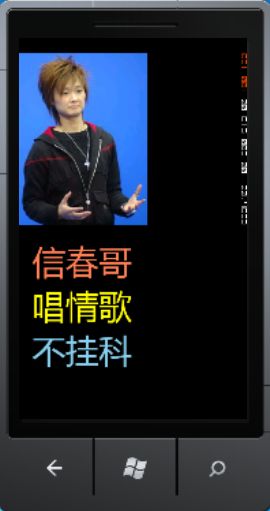
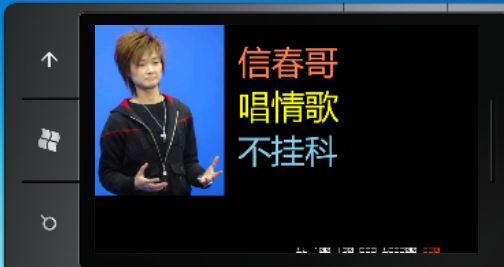
页面主要有两个控件,一个用于显示图片,一个用于显示文本信息,通过事件处理代码来相应改变两个控件的布局。
        private void PhoneApplicationPage_OrientationChanged(object sender, OrientationChangedEventArgs e)

        {

            // 如果是横向的

            if (e.Orientation == PageOrientation.Landscape ||

                e.Orientation == PageOrientation.LandscapeLeft ||

                e.Orientation == PageOrientation.LandscapeRight)

            {

                Grid.SetColumn(this.img, 0);

                Grid.SetRow(this.img, 0);

                Grid.SetRow(this.txtBlock, 0);

                Grid.SetColumn(this.txtBlock, 1);

            }

            // 如果是纵向

            else if (e.Orientation == PageOrientation.Portrait ||

                e.Orientation == PageOrientation.PortraitDown ||

                e.Orientation == PageOrientation.PortraitUp)

            {

                Grid.SetColumn(this.img, 0);

                Grid.SetRow(this.img, 0);

                Grid.SetRow(this.txtBlock, 1);

                Grid.SetColumn(this.txtBlock, 0);

            }

            else

            {

                Grid.SetColumn(this.img, 0);

                Grid.SetRow(this.img, 0);

                Grid.SetRow(this.txtBlock, 1);

                Grid.SetColumn(this.txtBlock, 0);

            }

        }
按F5运行程序,默认的屏幕方向是纵向的,如下图所示:
好,现在,我们把屏幕旋转一下,看看会怎么样。
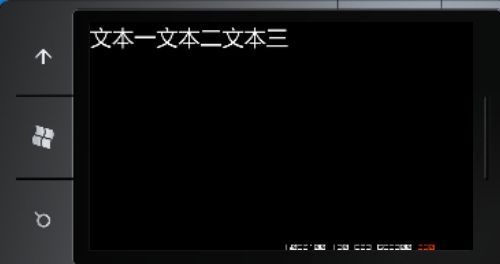
二、StackPanel控件的处理。
<phone:PhoneApplicationPage

    x:Class="Sample_PageDir.Page2"

    xmlns="http://schemas.microsoft.com/winfx/2006/xaml/presentation"

    xmlns:x="http://schemas.microsoft.com/winfx/2006/xaml"

    xmlns:phone="clr-namespace:Microsoft.Phone.Controls;assembly=Microsoft.Phone"

    xmlns:shell="clr-namespace:Microsoft.Phone.Shell;assembly=Microsoft.Phone"

    xmlns:d="http://schemas.microsoft.com/expression/blend/2008"

    xmlns:mc="http://schemas.openxmlformats.org/markup-compatibility/2006"

    FontFamily="{StaticResource PhoneFontFamilyNormal}"

    FontSize="{StaticResource PhoneFontSizeNormal}"

    Foreground="{StaticResource PhoneForegroundBrush}"

    SupportedOrientations="PortraitOrLandscape"

    OrientationChanged="PhoneApplicationPage_OrientationChanged"

    Orientation="Portrait"

    mc:Ignorable="d" d:DesignHeight="768" d:DesignWidth="480"

    shell:SystemTray.IsVisible="True">


    <phone:PhoneApplicationPage.Resources>

        <Style TargetType="TextBlock">

            <Setter Property="FontSize" Value="46"/>

        </Style>

    </phone:PhoneApplicationPage.Resources>


    <StackPanel x:Name="pl">

        <TextBlock Text="文本一"/>

        <TextBlock Text="文本二"/>

        <TextBlock Text="文本三"/>

    </StackPanel>

</phone:PhoneApplicationPage>
后台事件处理代码。
        private void PhoneApplicationPage_OrientationChanged(object sender, OrientationChangedEventArgs e)

        {

            if (e.Orientation == PageOrientation.Landscape ||

                e.Orientation == PageOrientation.LandscapeLeft ||

                e.Orientation == PageOrientation.LandscapeRight)

            {

                this.pl.Orientation = System.Windows.Controls.Orientation.Horizontal;

            }

            else

            {

                this.pl.Orientation = System.Windows.Controls.Orientation.Vertical;

            }

        }
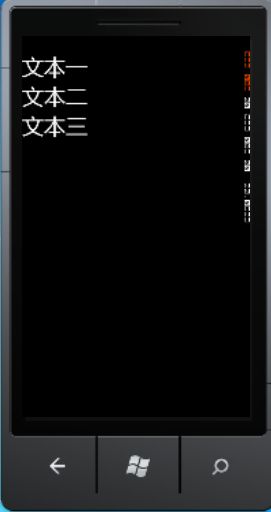
运行,默认方向是纵向。
把屏幕旋转后。
三、Canvas控件的处理。
<phone:PhoneApplicationPage

    x:Class="Sample_PageDir.Page3"

    xmlns="http://schemas.microsoft.com/winfx/2006/xaml/presentation"

    xmlns:x="http://schemas.microsoft.com/winfx/2006/xaml"

    xmlns:phone="clr-namespace:Microsoft.Phone.Controls;assembly=Microsoft.Phone"

    xmlns:shell="clr-namespace:Microsoft.Phone.Shell;assembly=Microsoft.Phone"

    xmlns:d="http://schemas.microsoft.com/expression/blend/2008"

    xmlns:mc="http://schemas.openxmlformats.org/markup-compatibility/2006"

    FontFamily="{StaticResource PhoneFontFamilyNormal}"

    FontSize="{StaticResource PhoneFontSizeNormal}"

    Foreground="{StaticResource PhoneForegroundBrush}"

    SupportedOrientations="PortraitOrLandscape"

    Orientation="Portrait"

    OrientationChanged="PhoneApplicationPage_OrientationChanged"

    mc:Ignorable="d" d:DesignHeight="768" d:DesignWidth="480"

    shell:SystemTray.IsVisible="True">


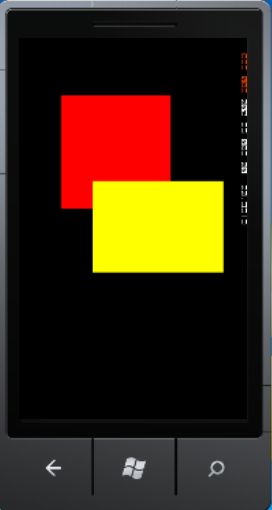
    <Canvas x:Name="cv">

        <Rectangle x:Name="rect1"

            Width="232"

            Height="238"

            Fill="Red"

            Canvas.Left="88"

            Canvas.Top="88"/>

        <Rectangle x:Name="rect2"

            Height="192"

            Width="275"

            Fill="Yellow"

            Canvas.Top="268"

            Canvas.Left="155"/>

    </Canvas>


</phone:PhoneApplicationPage>
后台代码。后台代码。
        private void PhoneApplicationPage_OrientationChanged(object sender, OrientationChangedEventArgs e)

        {

            if (e.Orientation== PageOrientation.Landscape||e.Orientation== PageOrientation.LandscapeLeft||e.Orientation== PageOrientation.LandscapeRight)

            {

                Canvas.SetTop(this.rect1, 37);

                Canvas.SetLeft(this.rect1, 46);

                Canvas.SetTop(this.rect2, 240);

                Canvas.SetLeft(this.rect2, 462);

            }

            else

            {

                Canvas.SetTop(this.rect1, 88);

                Canvas.SetLeft(this.rect1, 88);

                Canvas.SetTop(this.rect2, 268);

                Canvas.SetLeft(this.rect2, 155);

            }

        }
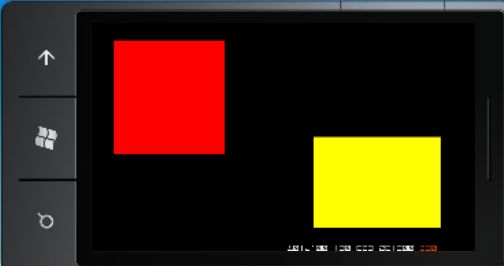
看看效果。看看效果。
纵向。
横向。